AI FDE 导航
2026/7/21 17:14:46 · 来源
本文引导用户了解如何在 Palantir 的 AI 功能开发环境(AI FDE)中启动会话、管理上下文、使用聊天大纲以及配置工具。
AI FDE 提供一个对话式界面,用于与 Foundry 数据、函数以及其他资源交互。使用页面底部的输入框开始会话、添加上下文,并配置 AI 可以调用的工具。
Initiate a session
Navigate to the AI FDE application and begin by typing a question or request in the input field at the bottom of the page.
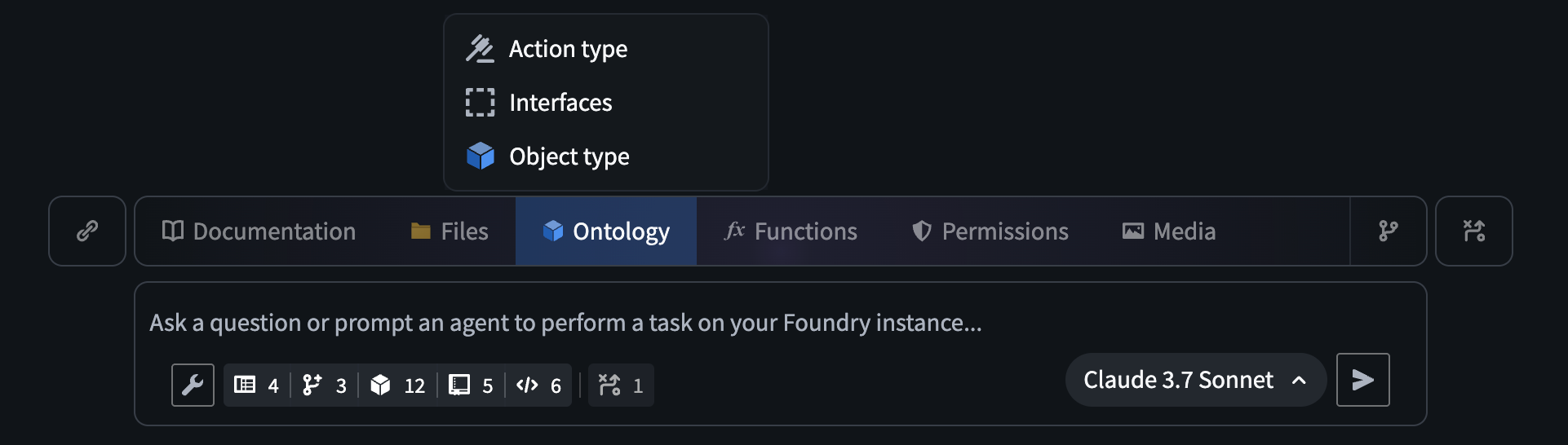 AI FDE 输入框。
Sessions are managed from the top toolbar, where you can create a new session or switch between existing ones.
 AI FDE 会话管理菜单。
Manage context
AI FDE can only work with context that you explicitly add to the chat. Context can be supplied in several ways:
-
Describe the task – the agent will automatically select a 模式 that determines the appropriate context and tools for your prompt.
-
Select a mode manually – choose a mode from the 模式 menu above the input field. Some modes expose extra configuration options (e.g., function language, use of transforms vs. Pipeline Builder).
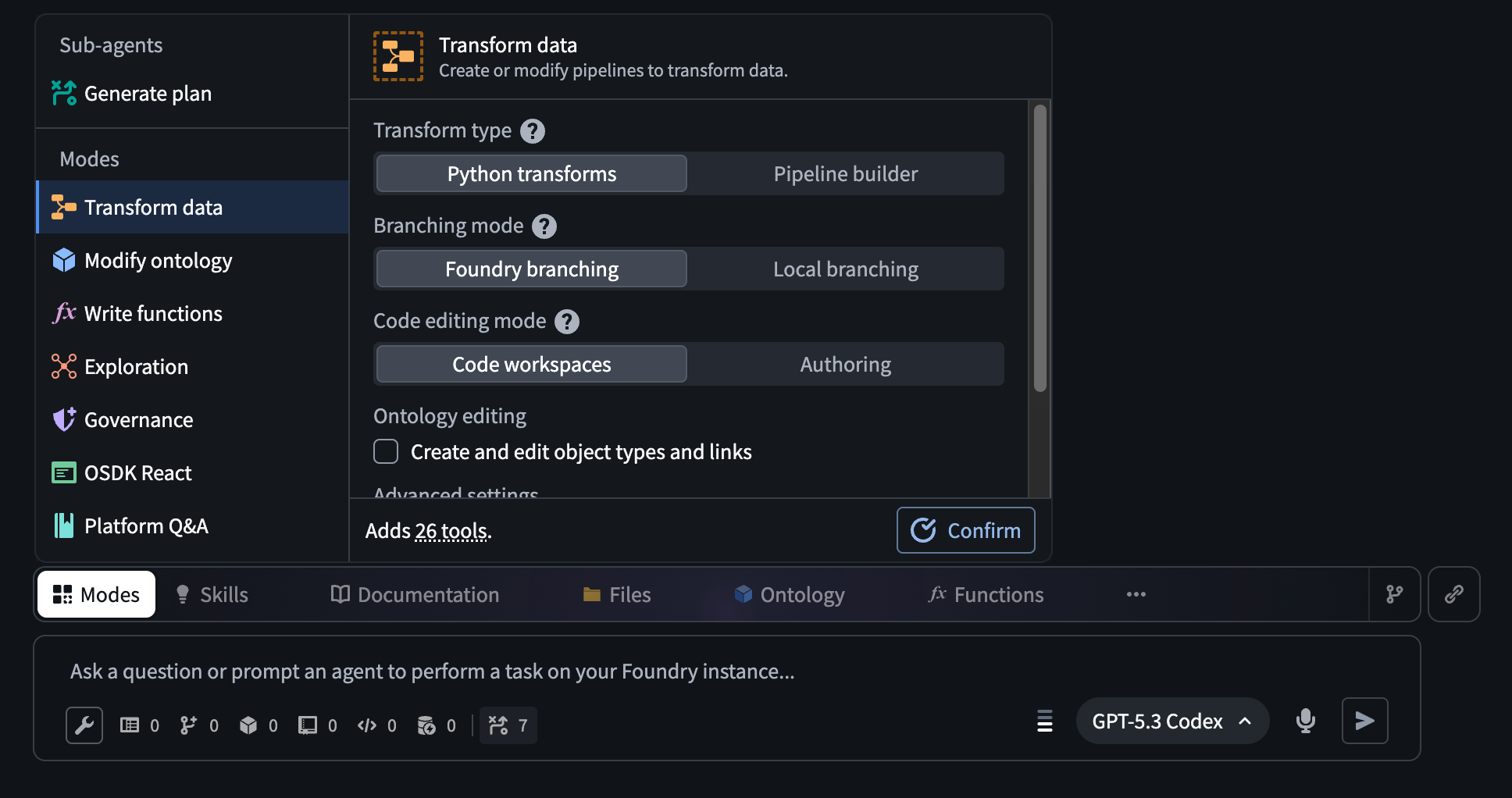 AI FDE 输入框上方的模式选择器。
 -
Add context manually – use the ribbon above the prompt input field to attach documentation bundles, upload media, or select Foundry resources such as:
- Datasets → 数据集
- Functions → 函数
- Branches → 分支
- Interfaces → 接口
- Action types → 操作类型
- Object types → 对象类型
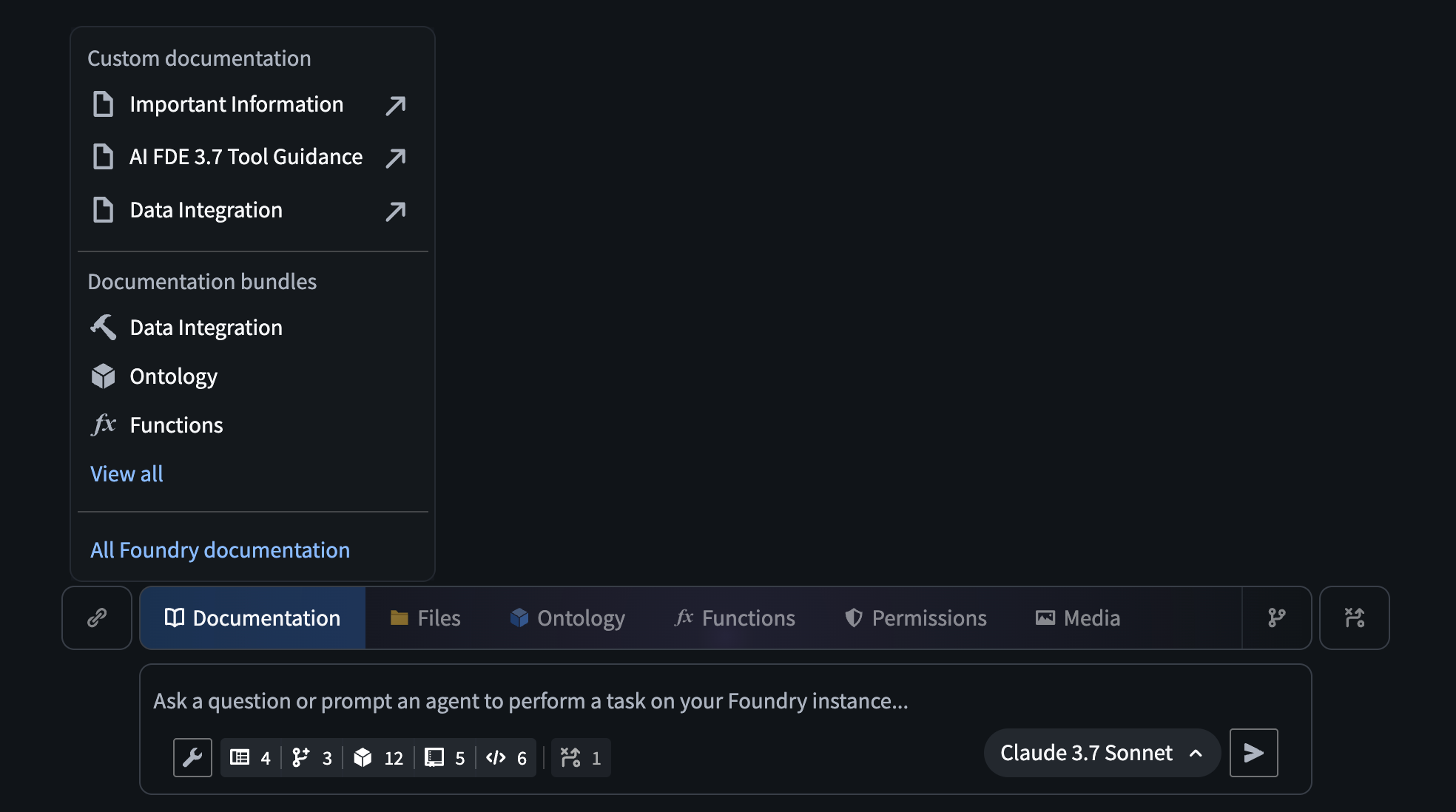 AI FDE 输入框上方的功能区,突出显示了添加文档包的选项。
 -
Drag‑and‑drop links – directly from other Foundry applications into AI FDE.
-
Enable search tools – that let AI FDE locate relevant resources automatically.
Chat outline
A collapsible panel on the right side shows the chat outline, which records the history of prompts, responses, and tools used in the session. You can:
- Summarize or delete messages (either from the main chat or the outline) to keep the model within its context window during long sessions.
- View the token count for each message.
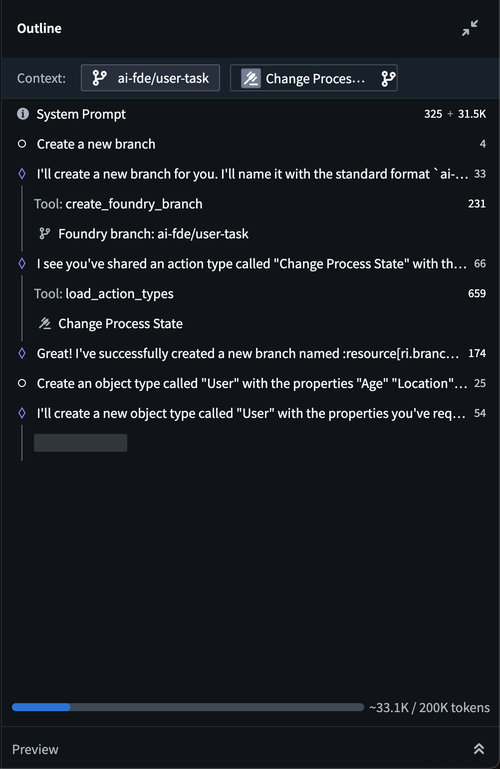 AI FDE 会话中的大纲面板。
Tool configuration
AI FDE lets you enable only the tools required for a given task, improving model performance. Use the tools menu below the input field to select or deselect tools.
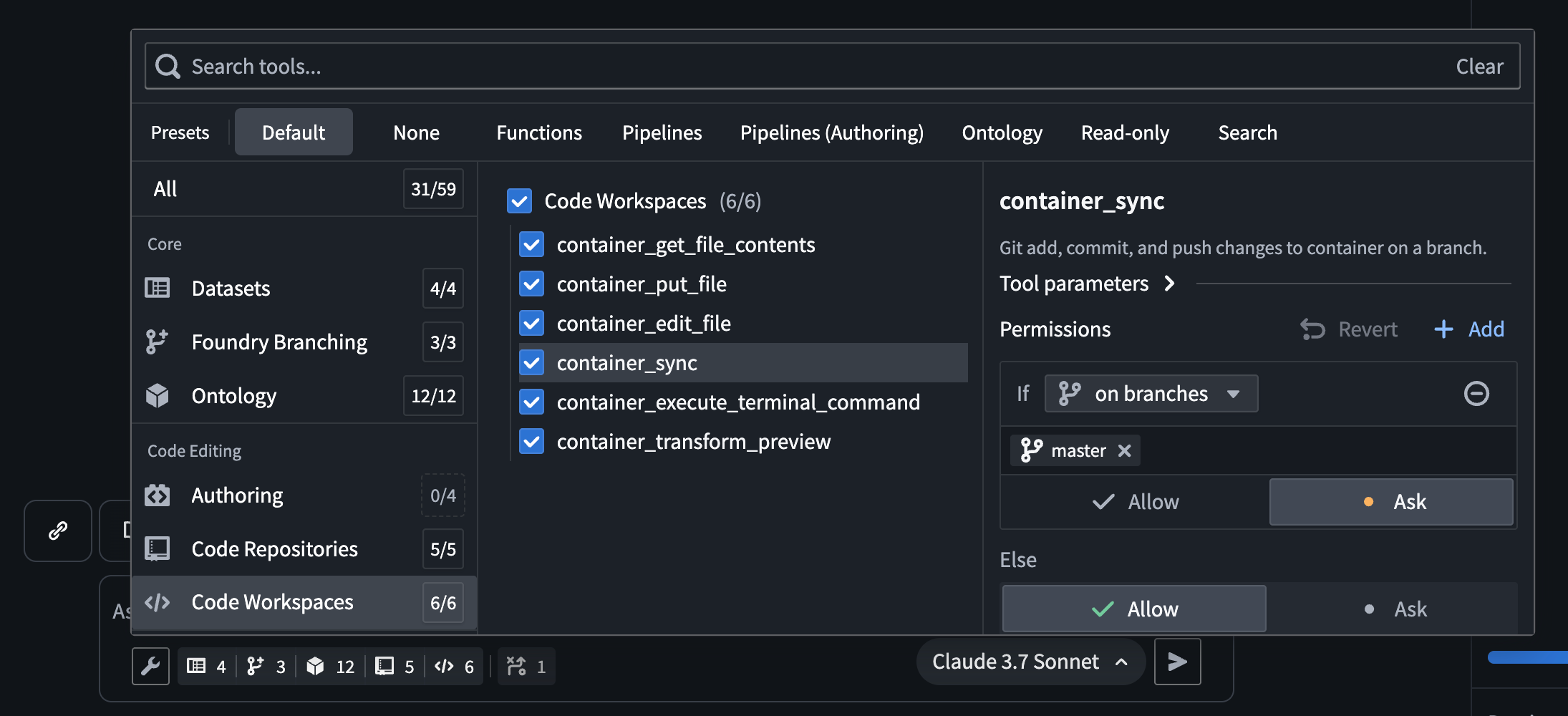 提示输入框下方的工具菜单。
When a task invokes a tool, AI FDE may request your approval. By default, approval is required in the following situations:
- The tool modifies the default branch.
- The tool creates an unbranched change (e.g., a new code repository).
- The tool could have side effects, such as triggering dataset builds.
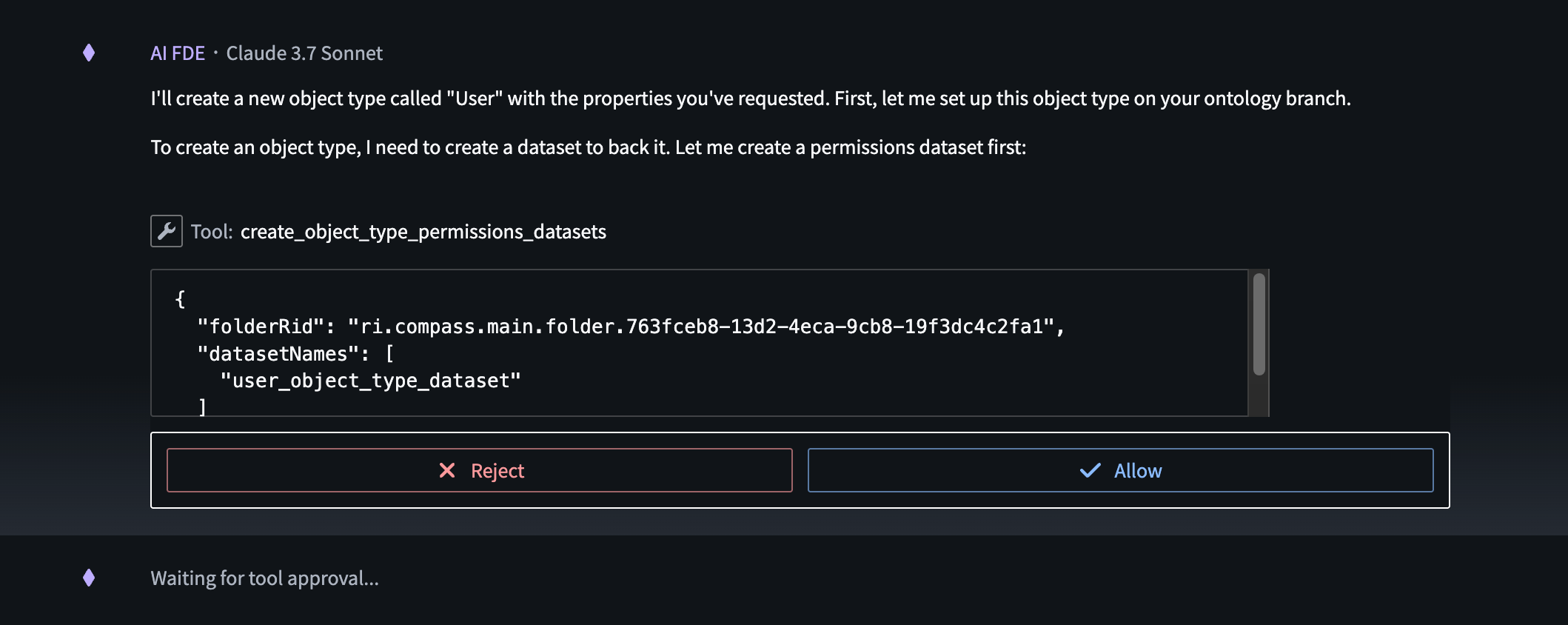 在 AI FDE 会话中拒绝或允许使用工具的选项。
Tool‑approval settings can be customized in the tool selection panel; for instance, you can allow certain tools to run automatically on allow‑listed branches or projects.
Key takeaways
- Start a session by typing into the bottom input field; manage sessions from the top toolbar.
- Add context via task description, mode selection, manual resource attachment, drag‑and‑drop, or search tools.
- Use the chat outline to track conversation history and control token usage.
- Enable only needed tools and approve actions when they could affect production branches or have side effects.
- Customize tool approval to streamline workflows on trusted branches or projects.
学习地图
第1阶段:入门
- 打开 AI FDE 并启动新会话——这是任何交互的必要步骤。
- 找到输入框和基础工具栏——查询的主要入口。
第2阶段:管理上下文
- 通过功能区添加文档包、数据集或函数——为模型提供所需的数据。
- 使用模式菜单选择预设模式——定制工具访问和语言设置。
- 从其他 Foundry 应用拖放资源——快速丰富上下文的方式。
第3阶段:控制聊天流程
- 浏览可折叠的聊天大纲——监控提示历史、令牌使用情况和工具调用。
- 对消息进行摘要或裁剪——防止超出模型的上下文窗口。
第4阶段:工具配置与审批
- 通过工具菜单仅启用任务所需的工具——提升模型性能。
- 了解默认审批规则并自定义自动审批——确保更改安全执行。
动手实践——分步指南
- 登录 Palantir Foundry and navigate to the AI FDE application from the workspace menu.
- 开始新会话 by clicking the New Session button in the top toolbar and type a simple question like “有哪些数据集可用?” in the input field.
- 添加上下文: click the ribbon above the input field, choose Add Documentation Bundle or Add Dataset, and select a relevant dataset from the list.
- 选择模式: open the Modes selector above the input field and pick Data Exploration (or any mode that matches your task).
- 启用工具: click the Tools menu below the input field, toggle on Search and Dataset Query.
- 运行查询 by pressing Enter; if a tool usage approval dialog appears, click Allow.
- 检查聊天大纲 on the right panel: 注意 token 数量 and use the Summarize button to condense earlier messages.
- 关闭会话 via the top toolbar when finished, ensuring all changes are saved or discarded as needed.
三大推荐资源
- 1Palantir Foundry AI FDE Navigation Documentation
Official guide covering session initiation, context management, chat outline, and tool configuration for AI FDE.
https://www.palantir.com/docs/foundry/ai-fde/navigation/
- 2Palantir Foundry Learning Center – AI FDE Overview
Self‑paced learning module that introduces AI FDE concepts, navigation, and practical use‑cases.
https://www.palantir.com/learn/foundry/ai-fde/
- 3Palantir YouTube: Getting Started with AI FDE
Video walkthrough demonstrating how to launch a session, add context, and configure tools in AI FDE.
https://www.youtube.com/watch?v=JkYV6hF9c2E
链接由 AI 推荐——使用前建议快速核实。