AI FDE Modes and capabilities
7/21/2026, 5:16:16 PM · Source
AI FDE organizes its work using high‑level modes and granular capabilities, letting agents pick the right tools and documentation for each task.
AI FDE separates what it’s doing (the mode) from how it does it (the capabilities), letting the agent stay focused on the right documentation, tools, and context for each task.
Modes
Modes define the broad task at hand. You can pick a mode manually, let the agent infer it from your input, or have the agent switch modes automatically as the work evolves. Selecting the appropriate mode loads relevant documentation, grants access to the correct tools, and prevents the agent from using unrelated resources (e.g., a Python‑transform mode won’t load React‑app tooling).
Available modes
- Data integration – Build or modify data pipelines (Python transforms or Pipeline Builder).
- Data connection – Create, manage, and debug Data Connection sources, egress policies, etc.
- Ontology editing – Create or update objects, links, and actions that compose your ontology.
- Functions editing – Write Foundry functions in Logic, TypeScript, or Python.
- Exploration – Read‑only investigation to understand existing platform assets before making changes.
- Governance – Audit permissions, access control, markings, and data‑protection settings.
- Machine learning – Train, evaluate, deploy, and tune models (classification, regression, time‑series forecasting, custom predictive modeling).
- OSDK React – Build React applications or custom widgets that connect to Foundry data.
- Platform Q&A – Ask general questions about how Foundry works.
Mode‑specific configuration options
| Mode | Configuration options |
|---|---|
| Data integration | Python transforms or Pipeline Builder |
| Functions editing | Language selection (Logic, TypeScript, Python) |
| Machine learning | Choose between Model Studio (no‑code) or pro‑code development, and select the preferred code editor |
 AI FDE mode selector above the input field with additional configuration options.
Capabilities
Capabilities are granular abilities the agent can invoke across any mode. They map to specific tools and can be turned on or off as the task progresses.
Agent capabilities
These govern how the agent manages itself and interacts with you:
- Change mode – Switch to a different mode mid‑task without manual intervention.
- Request clarification – Pose multiple‑choice or free‑text questions when more information is needed.
- Generate plan – Draft a step‑by‑step plan for review before execution, useful for ambiguous or multi‑step tasks.
- Load documentation – Pull up Foundry docs on demand.
- Manage context / Manage capabilities – Clean up working memory and enable/disable capabilities as the task evolves.
Domain capabilities
These perform concrete actions inside Foundry:
- Filesystem – Create folders, browse resources, move items.
- Notepad – Read, create, and update Notepad documents.
- Solution design – Create and edit solution‑design diagrams.
- Execute actions – Run actions against ontology objects.
Note: Capabilities can be enabled or disabled at any time. The Manage capabilities agent capability allows the agent to toggle them automatically during a workflow.
Key takeaways
- Modes set the high‑level task context and load the appropriate tools and documentation.
- Capabilities are fine‑grained actions that the agent can call regardless of mode.
- The agent can change mode and manage capabilities on the fly, keeping the workflow fluid.
- Mode‑specific configuration options (e.g., selecting a language for function editing) further tailor the agent’s behavior.
- Both agent and domain capabilities can be toggled dynamically, ensuring the agent only uses what’s needed for the current step.
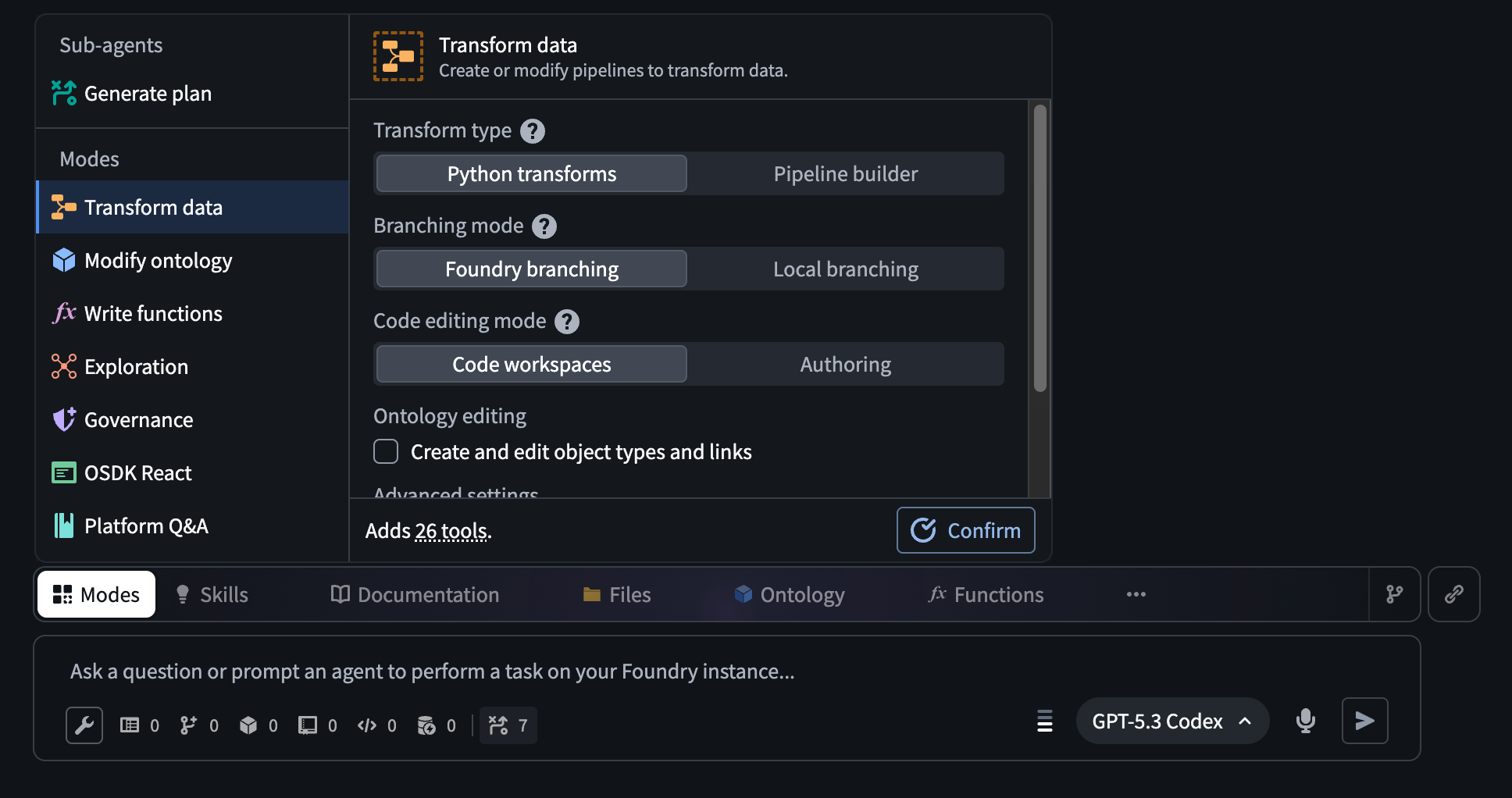 the AI FDE Mode selector above the input field with additional configuration options.
Learning map
Beginner
- Understand what AI FDE is and why modes help focus an agent.
- Learn the list of built‑in modes (data integration, ontology editing, etc.).
- Explore the AI FDE UI to see the mode selector.
Intermediate
- Study each mode’s configuration options and how they affect tool loading.
- Learn the difference between agent capabilities (change mode, request clarification) and domain capabilities (filesystem, notepad, execute actions).
- Practice enabling/disabling capabilities via the Manage capabilities command.
Advanced
- Build a multi‑step workflow that switches modes dynamically.
- Customize a mode by selecting specific tools (e.g., Model Studio for ML).
- Design a plan‑first interaction pattern using Generate plan and Request clarification.
- Evaluate how context management impacts task accuracy.
Get hands-on — step by step
- Log into Palantir Foundry and open the AI FDE workspace.
- In the input pane, type a simple request like "Create a new data connection for my sales database" and press Enter.
- Observe that the agent automatically selects the Data connection mode; click the mode selector to switch manually to Data integration.
- Click the Configure button for the chosen mode and pick a configuration (e.g., Python transforms).
- Ask the agent to Generate plan; review the step‑by‑step outline it proposes.
- Instruct the agent to Change mode to Machine learning mid‑task and watch it load Model Studio tools.
- Use the Request clarification capability by answering a multiple‑choice prompt the agent asks.
- Finally, use the Filesystem capability to create a folder named
ai_fde_demoand verify it appears in the Foundry file browser. - Close the session and note which capabilities were active during each step.
Top 3 sources
- 1AI FDE Modes and Capabilities Documentation
Official Palantir Foundry guide that explains every mode, its configuration options, and the associated capabilities.
https://www.palantir.com/docs/foundry/ai-fde/modes-and-capabilities/
- 2Model Studio – No‑code ML in Foundry
Covers the Machine Learning mode, showing how to build, train, and deploy models without writing code.
https://www.palantir.com/docs/foundry/model-integration/model-studio/
- 3Foundry Notepad Overview
Describes the Notepad domain capability, useful for creating and editing free‑form documents via AI FDE.
https://www.palantir.com/docs/foundry/notepad/overview/
Links are AI-suggested — worth a quick sanity check before diving in.