Claude Code Common Commands
7/12/2026, 11:00:08 PM · updated 7/12/2026, 11:03:13 PM
This article systematically introduces the core command system of Claude Code, Anthropic's official command-line tool, and provides a progressive practical learning path from basic sessions and state management to project memory and advanced integration extensions.
First, Remember the Most Important Action
In Claude Code, simply type / to see all currently available commands.
Continue typing / followed by letters to quickly filter commands.
The official documentation also specifically notes: not all commands are visible to every user.
Some commands are affected by the platform, plan, environment, or terminal capabilities.
Build a Command System with a Single Diagram

The 15 Most Worthwhile Commands for Beginners to Master First
If you are just starting to use Claude Code, you don't need to memorize dozens of commands right away.
Mastering these 15 is enough to get you started:
Command
Purpose
Tip
/help
View help and available commands
Look here first if you forget a command
/clear
Clear current conversation history
Very useful when the discussion goes off track
/config
Open settings interface
Change models, themes, and output styles
/status
Check current status
View version, model, account, and connection
/model
Switch models
Use when you want to change the capability tier
/usage
Check plan usage and rate limit status
When you care about quotas and rate limits
/cost
View token and cost statistics
When you want to control costs
/permissions
View or update permissions
Control whether tools are allowed to execute
/plan
Enter plan mode
Plan big tasks first before executing
/diff
View differences of current changes
Very useful after modifying code
/memory
Manage CLAUDE.md and memory
All long-term project constraints are here
/context
View context usage
Troubleshoot context issues after long conversations
/resume
Resume previous session
Continue from where you left off last time
/compact
Compact conversation context
Very useful after long conversations
/rewind
Rewind to a previous checkpoint
Very useful when things get broken
/hooks
View tool event hooks configuration
When you want to implement automated enhancements
1. Session Control Commands
This category of commands mainly solves the problem of "how to manage the current session".
/clear
Clear conversation history and free up context.
The official documentation also mentions it has two aliases:
/reset/new
When is it suitable to use:
- The current conversation has already become cluttered
- You want to switch tasks and start fresh
- The context has been polluted by old questions
/resume [session]
Resume historical sessions.
You can resume via session ID or name, or open a selector to continue.
/rename [name]
Rename the current session.
If you don't specify a name, Claude Code can automatically generate one based on the conversation history.
/exit
Exit the CLI.
The alias is /quit.
2. Planning, Viewing, and Execution Commands
This category of commands is closest to the actual development workflow.
/plan [description]
The official documentation makes it very clear: it can directly enter plan mode from a prompt.
You can also optionally include a description, for example:
/plan fix the auth bug
This is perfect for:
- Changes that span multiple files
- You want to see the plan first, without having Claude modify the code immediately
- You want the task to be broken down clearly first
/diff
Open the interactive diff viewer.
You can use it to view:
- Current uncommitted Git changes
- Differences generated by Claude in each round
This is much more reliable than simply asking, "What did you change?"
/tasks
List and manage background tasks.
If you have Claude running a task that takes a long time, this command will be very useful.
/pr-comments [PR]
Fetch and display GitHub Pull Request comments.
The official documentation notes that it depends on the gh CLI.
3. Configuration and Status Commands
This category of commands resolves how Claude Code is currently running.
/config
Open the settings interface.
The official documentation mentions that it can adjust:
- Themes
- Models
- Output styles
- Other preference settings
The alias is /settings.
/status
Open the status interface to view:
- Version
- Model
- Account
- Connectivity
The official documentation specifically highlights: it also works while Claude is responding, without needing to wait for the current response to finish.
/usage
This is the command you specifically requested to add earlier.
The definition given in the official documentation is very straightforward:
Display plan usage limits and rate limit status
It is suitable for use at times like these:
- You suspect you are about to hit your plan limits
- You want to check if you are currently being throttled by rate limits
- You have been using it heavily for a while and want to check your quota status
If you often use Claude Code heavily, keeping this command handy is recommended.
/cost
The official documentation says: Display token usage statistics.
If you are concerned about costs, this command goes hand-in-hand with /usage:
/usagefocuses more on plan limits and rate limits/costfocuses more on token consumption and session costs
/model [model]
Select or switch models.
For supported models, you can also further adjust the thinking effort level.
/effort [low|medium|high|max|auto]
Set the model effort level.
This command is important for advanced users, as it directly affects Claude's depth of thinking and response cost.
/permissions
View or update permissions.
If you find Claude always getting blocked on certain tool calls, this command is crucial.
/theme
Switch color themes.
The official documentation mentions that it supports:
- Light and dark variants
- Colorblind-friendly themes
- ANSI themes using terminal colors
This isn't a core productivity command, but if you use Claude Code for long periods, fine-tuning the interface experience is well worth it.
/vim
Toggle between Vim and regular editing modes.
If you are already accustomed to Vim-like operations in your terminal, this command will be quite practical.
4. Project Initialization and Memory Commands
/init
The official documentation states very clearly:
It initializes the project using the CLAUDE.md guide.
This is generally suitable for:
- Introducing Claude Code to a project for the first time
- Systematically establishing project instructions and work constraints
/memory
This command is extremely important.
It allows you to:
- Edit
CLAUDE.md - Enable or disable auto-memory
- View auto-memory entries
You can think of it as Claude Code's "project memory management portal."
/context
The official documentation describes it as:
Visualize current context usage as a colored grid. Display optimization recommendations for context-intensive tools, memory bloat, and capacity warnings
In other words, instead of simply telling you "how many tokens are left," it helps you clearly see:
- Whether the current context is already getting very heavy
- Which tools or historical contents consume the most context
- Whether memory bloat is occurring
- Whether you are close to the capacity boundary
This is extremely useful in long conversations.

When is /context Most Needed?
- The conversation has gone on for many rounds
- You feel like Claude is starting to "forget previous context"
- Response quality declines, but you don't know if the context is too full
- You want to determine whether to execute
/compact
You can think of it as Claude Code's "context health check command."
/compact [instructions]
The official documentation says: Compact the conversation, with the option to pass in focus instructions.
This is a very practical command in long sessions.
For example, you can understand it like this:
- The conversation is too long
- The context is starting to bloat
- You want Claude to keep the key points and discard redundancies
At this point, you can use /compact, optionally appending a focus for compression if needed.
/compact 只保留和支付模块改动有关的上下文
5. Extension and Integration Commands
/mcp
Manage MCP server connections and OAuth authentication.
/plugin
Manage Claude Code plugins.
/ide
Manage IDE integrations and view status.
/remote-control
Enable remote control of the current session from claude.ai.
The alias is /rc.
If you didn't realize before that Claude Code has remote bridging capabilities, this command is one of the most direct entry points.
/hooks
The official documentation describes it as: View tool event hook configurations.
If you want to implement more advanced automation, such as:
- Triggering scripts before or after tool execution
- Adding automatic checks
- Integrating with your own engineering workflow
This command is a very important entry point.
6. Other High-Frequency But Easily Overlooked Commands
/copy [N]
Copy the most recent assistant response.
If you pass a number N, you can copy the Nth most recent response.
/export [filename]
Export the current conversation as plain text.
Suitable for archiving, reviewing, and preserving work logs.
/branch [name]
Create a branch for the current conversation.
The alias is /fork.
/doctor
Diagnose the installation and setup of Claude Code.
If you suspect an issue with your environment, this is a high-priority troubleshooting entry point.
/rewind
The official documentation states that it can:
- Rewind the conversation to a previous point
- Rewind the code to a previous state
- Or summarize from a selected message
The alias is /checkpoint.
This command is particularly suitable for:
- When a certain round of changes doesn't turn out right
- When you want to return to an earlier safe point
- When you need to re-implement a certain part of the path
Another Batch of Commands Well Worth Knowing
If you have already passed the beginner stage, these commands are also well worth gradually mastering:
Command
Purpose
/copy [N]
Copy the most recent or Nth most recent response
/export [filename]
Export current conversation
/branch [name]
Create a branch for the current conversation
/doctor
Diagnose installation and configuration issues
/context
Visualize context usage and sources of bloat
/theme
Adjust color themes
/vim
Toggle Vim mode
/tasks
Manage background tasks
/pr-comments [PR]
Fetch GitHub PR comments
/ide
View and manage IDE integrations
/remote-control
Enable remote control
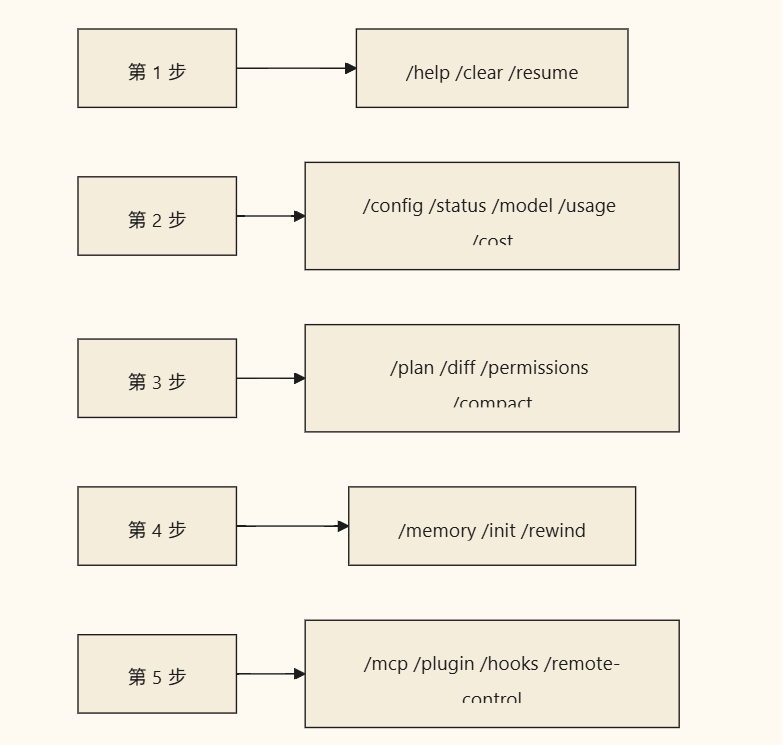
Recommended Mastery Order
A Very Useful Command Combination
You can absolutely use them like this in your daily workflow:
/plan
先规划这个需求,不要立刻改代码。

确认后开始修改。

/diff
看一下本轮改动。

/usage
确认一下当前使用限制状态。

/memory
把这次沉淀下来的项目规则写进 CLAUDE.md。
Summary
There are many official commands, but you don't need to know them all at the beginning.
A more logical learning path is:
- Master session control first
- Then master configuration, status,
/usage, and/cost - Then master
/plan,/diff,/permissions, and/compact - Then master
/memoryand/rewind - Finally, move on to extension capabilities like
MCP,plugin,hooks, andremote-control
If you can't remember them, just go back to the very first sentence:
Type
/in Claude Code to see which commands are currently available, then choose based on your scenario.
Learning map
第一阶段:基础控制与会话管理
- 掌握基本交互(
/help,/快捷键):学会随时唤出命令列表,这是最基础的自救与探索手段。 - 管理会话生命周期(
/clear,/resume,/exit):在会话跑偏或任务切换时清理上下文,防止历史信息干扰并节省 Token 成本。 - 监控运行消耗(
/status,/usage,/cost):随时查看当前连接状态、套餐限流情况以及 Token 消耗成本,做到心中有数。
第二阶段:高效开发与代码管控
- 方案规划先行(
/plan):在复杂或多文件修改任务前先进入计划模式,让 Claude 生成方案而非盲目改动代码。 - 直观对比差异(
/diff):使用交互式差异查看器对比本地与 Claude 产生的每一轮改动,确保代码变更完全可控。 - 维护项目记忆(
/memory与CLAUDE.md):建立并编辑项目专属的规则与约束,实现长效的项目级个性化定制。 - 上下文健康度诊断(
/context,/compact):多轮长对话后查看上下文分布网格,并进行智能压缩,保持 AI 响应的高质量。
第三阶段:高阶自动化与环境集成
- 安全与权限控制(
/permissions,/doctor):管理自动化工具的安全执行权限,并在遇到环境故障时进行一键诊断。 - 版本回溯与分流(
/rewind,/branch):当代码改坏时快速回滚到之前的安全状态,或为当前会话拉取分支进行多路径探索。 - 生态与高级扩展(
/mcp,/hooks):连接 Model Context Protocol (MCP) 服务,或编写工具事件 hooks,将 Claude Code 深度无缝嵌入本地工程流。
Get hands-on — step by step
-
Install and Start: Execute the following command in the terminal for a global installation:
npm install -g @anthropic-ai/claude-codeThen, enter your project's root directory and type
claudeto start the interactive CLI. -
Experience Quick Exploration: After entering the interactive interface, type
/directly to observe the available commands menu popping up at the bottom. Try typing/statusto view the current connection status and available models. -
Plan Your First Task: Enter the following command to enable planning mode and observe how Claude breaks down the task without directly modifying the code:
/plan Create a simple frontend login form component -
Modifications and Diff Comparison: After Claude finishes writing or modifying code, type
/diffto view the actual modification differences in your local files, and save after confirming there are no issues. -
Diagnostics and Context Compaction: After multiple rounds of conversation, type
/contextto visually view the current Token usage grid. If the context is too large, type/compact "Keep login form logic, clear other discussions"to free up space. -
Persistent Project Specifications: Type
/memoryor directly create aCLAUDE.mdfile in the root directory, and write your code style constraints (e.g., "Use TypeScript, no any allowed"). Ask Claude again, and it will automatically follow the constraints in that file.
Top 3 sources
- 1Anthropic Claude Code Official Documentation
Anthropic 官方关于 Claude Code 的使用指南,包含最权威的命令详解、配置选项及最佳实践。
https://docs.anthropic.com/en/docs/agents-and-tools/claude-code
- 2Model Context Protocol (MCP) Official Website
深入了解 `/mcp` 命令背后的开放协议,学习如何让 Claude Code 连接并使用丰富的外部数据源。
https://modelcontextprotocol.io
- 3Anthropic Cookbook GitHub Repository
官方提供的代码示例库,涵盖工具调用、Agent 构建等各种进阶 API 使用技巧。
https://github.com/anthropics/anthropic-cookbook
Links are AI-suggested — worth a quick sanity check before diving in.