AIP Analyst Overview
7/21/2026, 5:11:11 PM · Source
AIP Analyst lets users perform natural‑language, agentic analyses on a Foundry Ontology, automatically searching, filtering, aggregating, and visualizing data.
AIP Analyst provides a natural‑language interface for agentic workflows, enabling users to perform ad‑hoc analyses across their Ontology by automatically searching, filtering, aggregating, and visualizing data.
Overview
AIP Analyst lets you ask a question in plain language; the underlying agent then:
- Searches the Ontology with multiple terms to locate relevant object types.
- Creates object sets and applies transformations such as geospatial filters or aggregations.
- Generates concise summaries and visualizations that answer the original query.
Example workflow
Imagine a coffee‑chain owner who wants to assess the viability of opening a new store in Northampton, England. The user asks:
“Which coffee shops are within 10 km of Northampton? Are any chains particularly prominent?”
The analyst proceeds through three steps:
-
Search – AIP Analyst scans the Ontology for coffee‑shop objects using varied search terms to improve coverage.
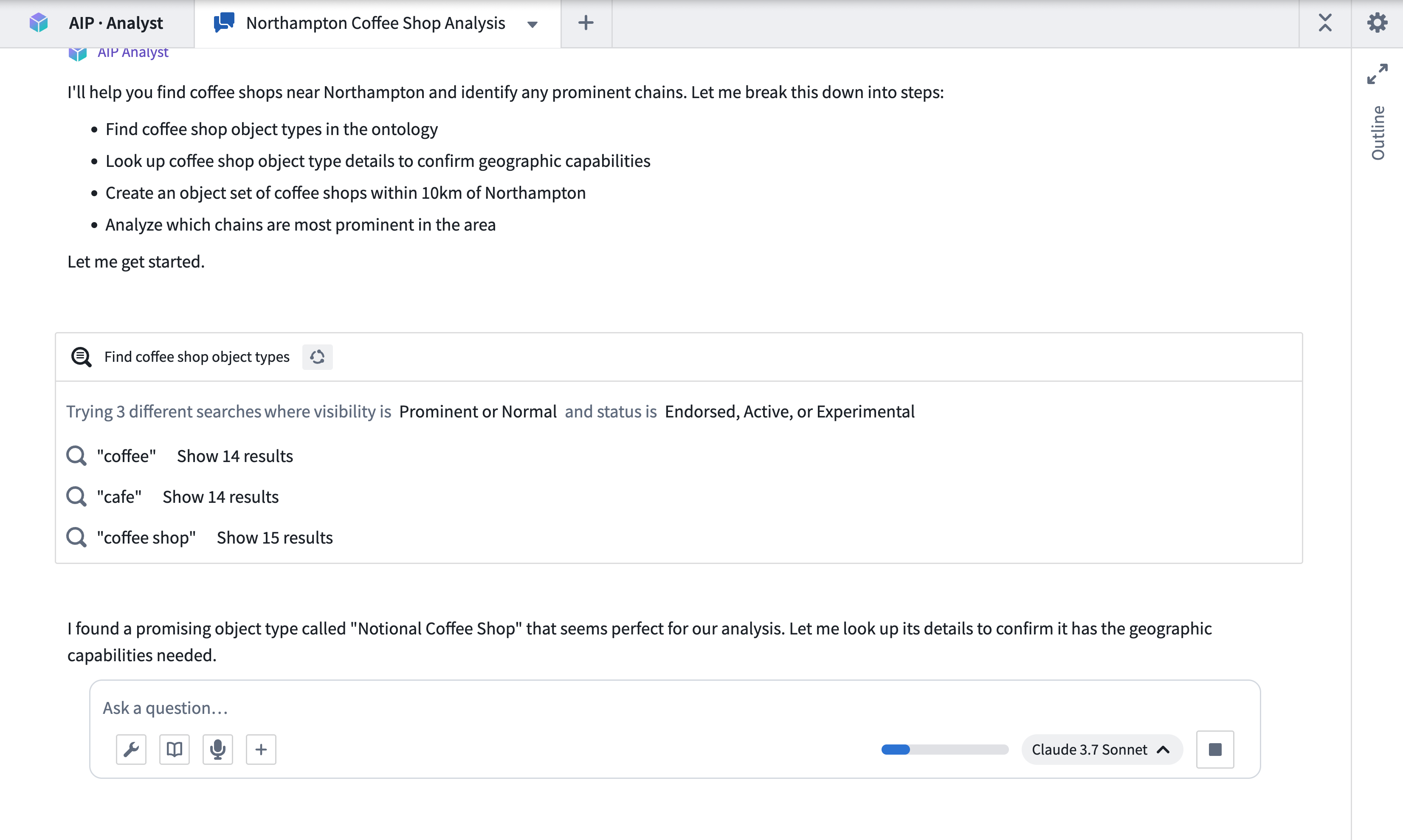 AIP Analyst performing an object‑type search across the Ontology.
 -
Geospatial filtering – The identified coffee shops are filtered with a radius centered on Northampton.
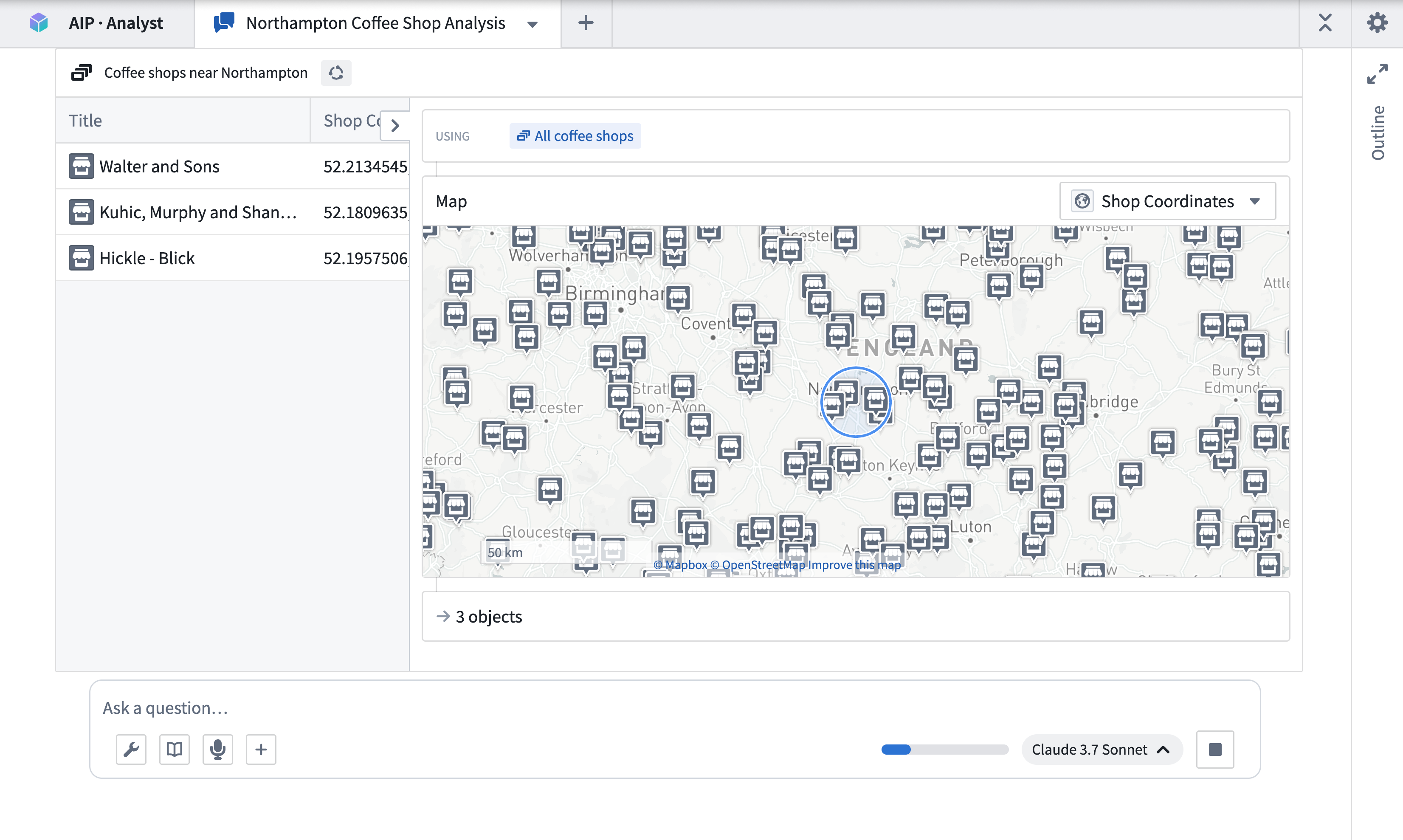 Geospatial filter applied to coffee‑shop locations.
 -
Aggregation & summary – Additional aggregations reveal which chains dominate the area, and a textual summary with visualizations is produced.
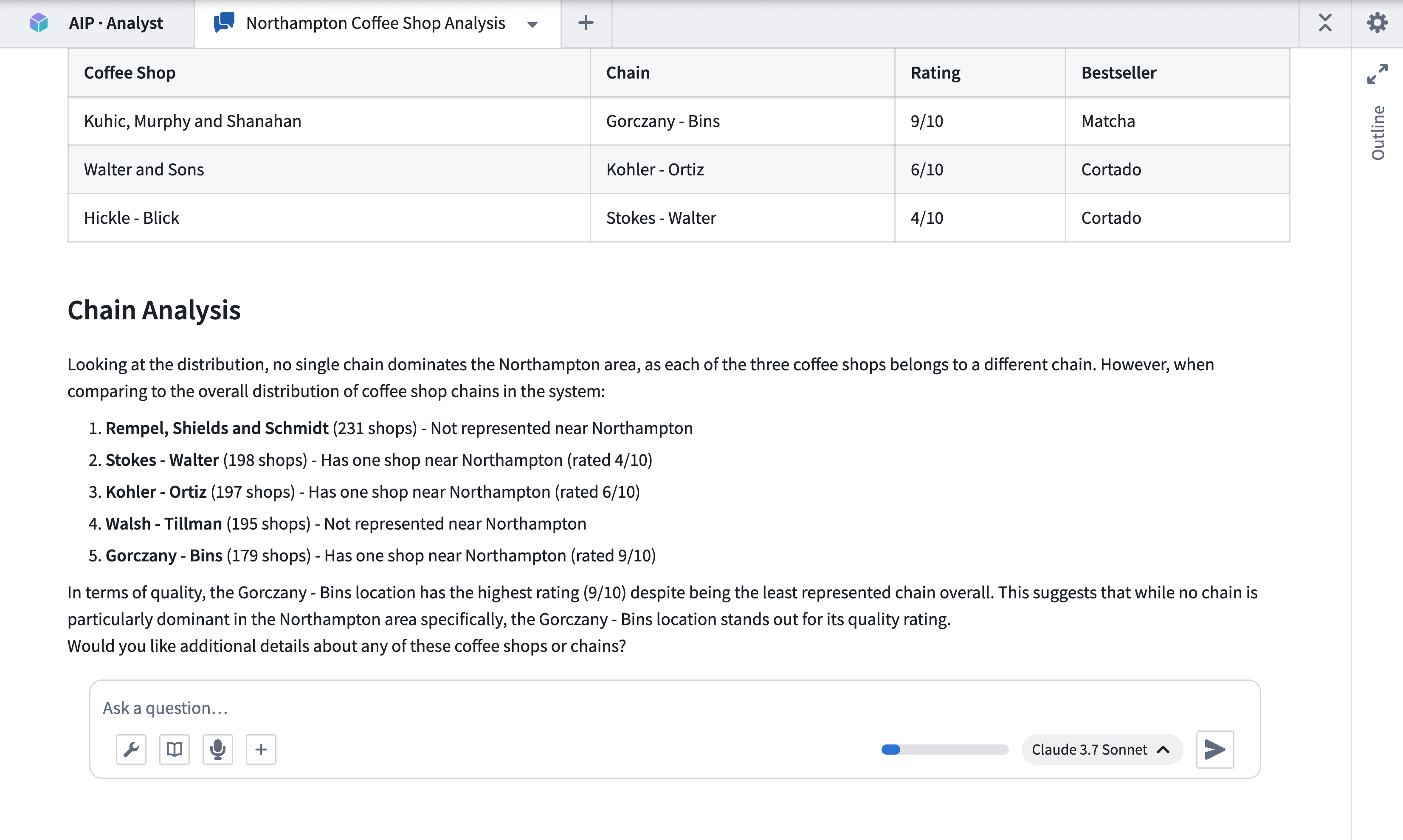 Summary of coffee‑shop density and competing chains near Northampton.
More ways to use AIP Analyst
Beyond ad‑hoc queries, AIP Analyst can be leveraged for longer‑term or integrated workflows:
- Save analyses as Compass resources – Return to work later or share with teammates via analysis resources.
- Embed in other applications –
- Add a Workshop widget for tighter integration inside a Workshop module.
- Use URL parameters to embed AIP Analyst in an iframe within OSDK or other Foundry apps.
Key takeaways
- Natural‑language queries drive autonomous searches, filtering, and visualizations across the Ontology.
- The workflow automatically searches, applies geospatial filters, aggregates, and summarizes data.
- Analyses can be saved as Compass resources for later reuse or collaboration.
- AIP Analyst can be embedded via Workshop widgets or URL parameters for seamless integration into other Foundry applications.
Learning map
Learning Map
Stage 1 – Beginner
- Understand what an Ontology is in Foundry and how AIP Analyst queries it.
- Explore the AIP Analyst UI and run the built‑in example workflow.
Stage 2 – Intermediate
- Formulate natural‑language questions that trigger object‑type search and filters.
- Apply geospatial and attribute filters, then interpret the generated tables and charts.
- Save the outcome as a Compass analysis resource for later reuse.
Stage 3 – Advanced
- Embed the analyst in a Workshop widget or an iframe using URL parameters.
- Combine AIP Analyst with custom OSDK scripts for automated reporting.
- Refine prompts and chain multiple agentic steps for complex investigations.
Get hands-on — step by step
- Log into Palantir Foundry and open the AIP Analyst application from the menu.
- In the query box, type a natural‑language question, e.g., "Which coffee shops are within 10 km of Northampton? Are any chains particularly prominent?" and press Enter.
- Review the automatically created object set, tables, and visualizations that appear on the right side.
- Click Add Filter → Geospatial, set the centre to Northampton and radius to 10 km, then apply the filter.
- Observe the updated results and note any aggregated metrics (e.g., chain counts).
- Choose Save Analysis → Create Compass Resource, give it a name (e.g., Northampton Coffee Competition), and confirm.
- To embed the analysis, open the Embed tab, copy the generated URL with parameters, and paste it into an iframe in a Workshop widget or OSDK page.
- (Optional) Edit the URL parameters to pre‑populate the question or filter for reuse by teammates.
Top 3 sources
- 1AIP Analyst Documentation – Overview
Official Palantir Foundry docs that explain AIP Analyst capabilities, workflow, and UI.
https://www.palantir.com/docs/foundry/aip-analyst/overview/
- 2AIP Analyst – Analysis Resources
Guides how to save, share, and version analyses as Compass resources.
https://www.palantir.com/docs/foundry/aip-analyst/analysis-resources/
- 3AIP Analyst – Embedding Guide
Instructions for embedding AIP Analyst in Workshop widgets or iframe using URL parameters.
https://www.palantir.com/docs/foundry/aip-analyst/embed/
Links are AI-suggested — worth a quick sanity check before diving in.