AIP Document Intelligence Overview
7/20/2026, 11:10:59 PM · Source
Palantir Foundry's AIP Document Intelligence simplifies complex document extraction workflows by offering traditional OCR and generative AI strategies, interactive evaluations, and one-click deployment to Python transform pipelines.
AIP Document Intelligence serves as Foundry's central hub for all enterprise document extraction workflows. It enables users to easily open media sets of documents, quickly run state-of-the-art extraction strategies, and evaluate the quality, speed, and token cost of those strategies. Once configured, you can deploy the extraction strategy as a Python transform to a batch pipeline with a single click.
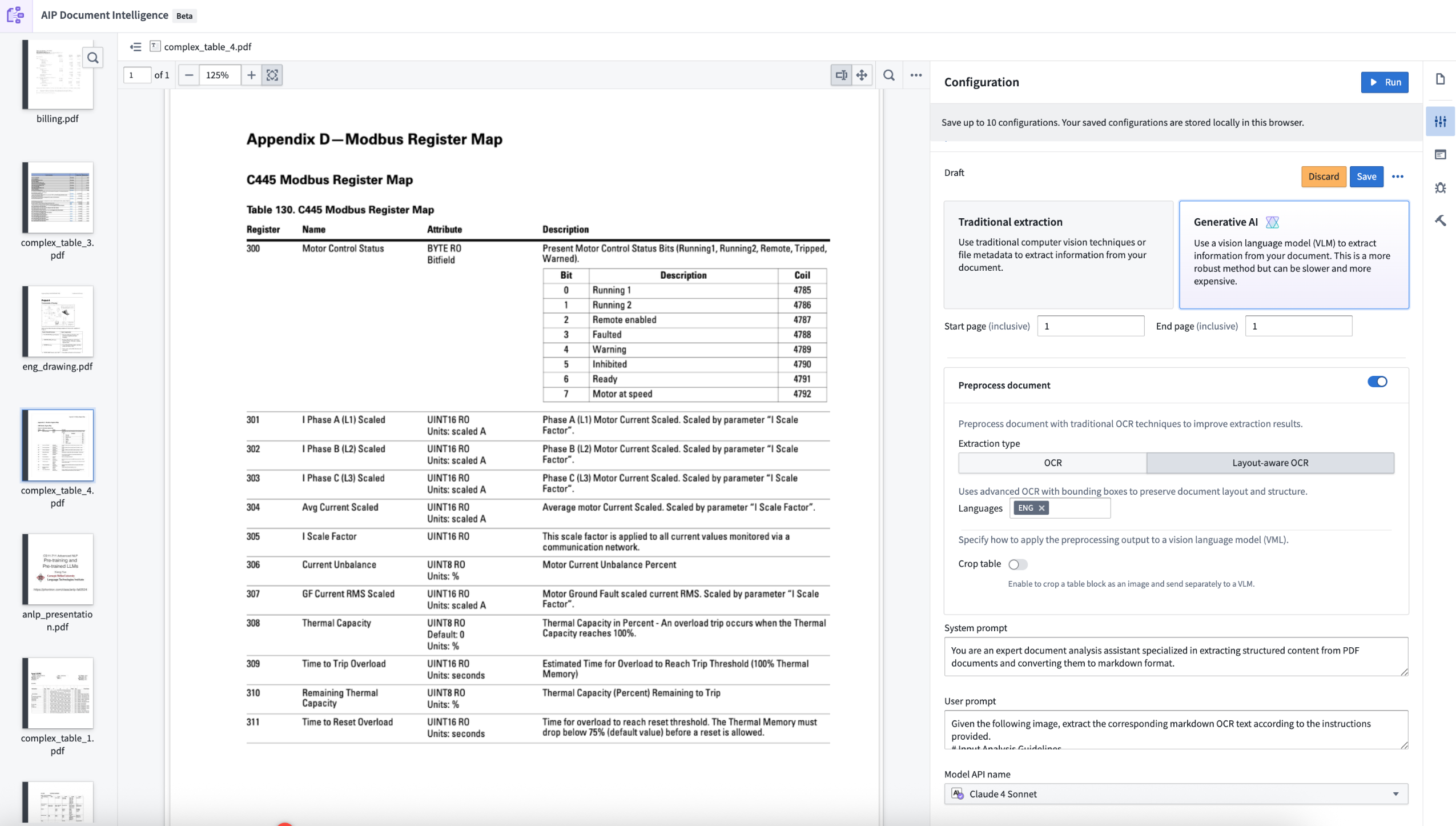 An example PDF document from a media set previewed in AIP Document Intelligence.
Core Capabilities and Features
AIP Document Intelligence combines advanced generative AI and traditional OCR technologies with an intuitive, walk-up interface designed for rapid testing and deployment.
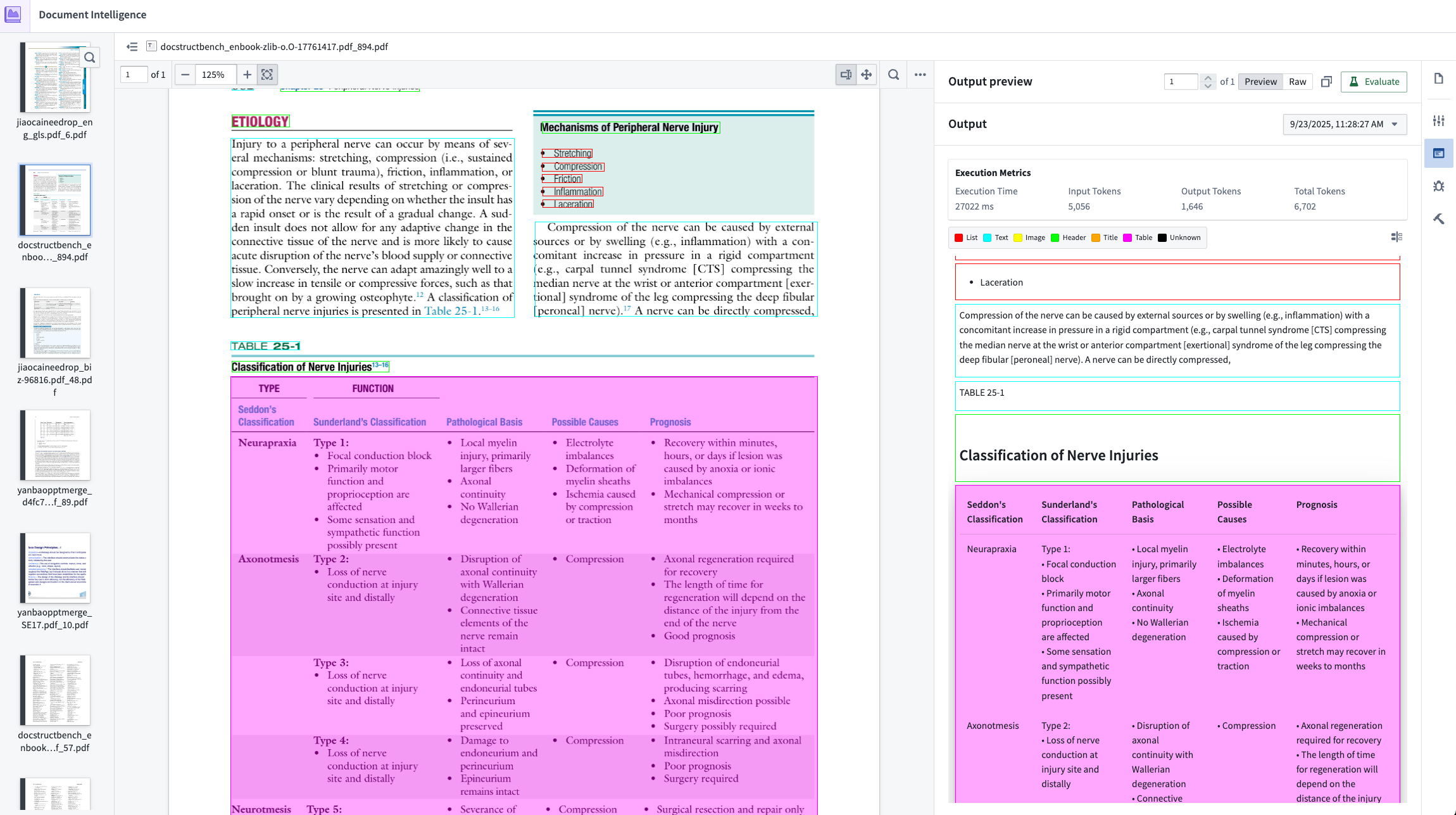 An example of document extracting in Document Intelligence, using bounding boxes to highlight distinct areas of extraction.
Intuitive User Experience
- Unified Interface: Easily search for and select Foundry media sets to process.
- Quick Confirmation Loop: Quickly verify extraction results using Markdown output mapped interactively to bounding boxes on the original PDF document.
Advanced Extraction Strategies
- Traditional Extractions: Leverage layout-blind and layout-aware methods:
- Raw text: Extracts underlying metadata. Only available for electronically generated PDFs.
- OCR: Traditional Optical Character Recognition that pulls text without preserving visual layout information.
- Layout-aware OCR: Advanced OCR with bounding boxes that preserves structural layout.
- Generative AI (VLM) Extractions: Use vision language models (VLMs) with system prompts fine-tuned to extract clean Markdown. You can modify these default prompts using your own custom logic in the configuration interface.
- VLM Preprocessing: Combine layout-aware OCR preprocessing with generative VLMs to handle highly complex documents. Learn more in the document preprocessing guide.
Metrics, Evaluations, & Deployment
- Execution Metrics: Review execution time, input/output token consumption, and general quality scores.
- AI-Assisted Evaluations: Use a "VLM as a judge" to score extraction success across specific structural elements (e.g., tables, code blocks, lists). Learn more about extraction evaluations.
- One-Click Deployment: Seamlessly deploy your finalized strategy into a Python transforms repository. Learn more about extraction strategy deployment.
Getting Started: The Iterative Workflow
AIP Document Intelligence uses an iterative, test-and-adjust workflow. Users import a media set, select a configuration, evaluate their strategy, and deploy once satisfied.
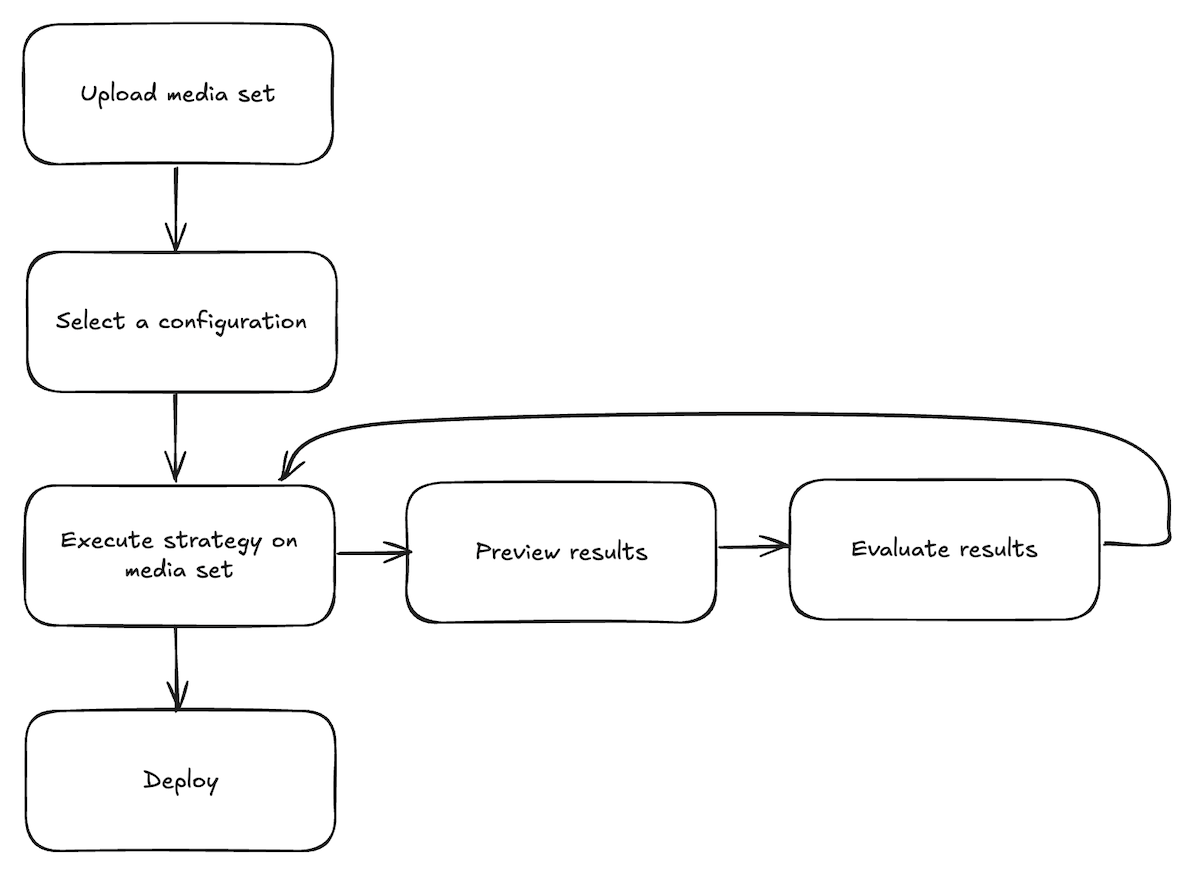 A diagram of the standard workflow when using AIP Document Intelligence.
Step 1: Upload a Media Set
Select an existing media set from your available Foundry files or upload a new media set directly from the application landing page.
Step 2: Select a Configuration
Open the Configuration tab to choose your extraction method (traditional OCR vs. generative AI VLMs), enable document preprocessing if needed, and customize your model prompts. Select Save to store these settings.
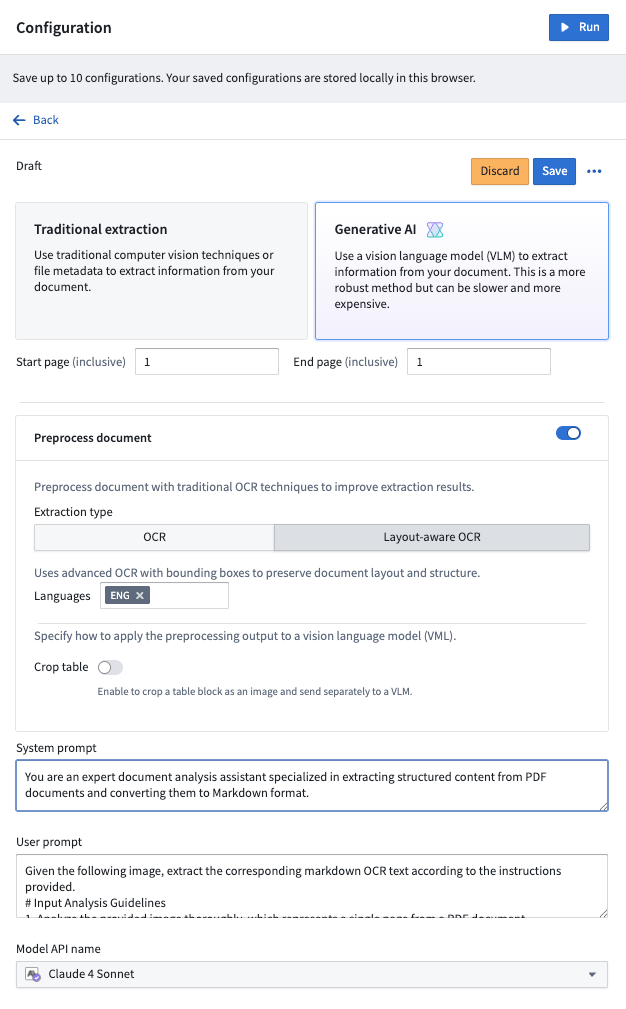 The Configuration tab in AIP Document Intelligence
Step 3: Execute the Strategy
With your configuration saved, select Run in the top right corner of the Configuration tab to run the extraction process on the media set.
Step 4: Preview Extraction Results
Navigate to the Extraction result tab to review the output format and layout mapping.
Step 5: Evaluate Extraction Results (Optional)
From the results tab, select Evaluate results to initiate an LLM-based evaluation of your output. Repeat Steps 3 through 5, modifying prompts and models, until you achieve your target extraction quality.
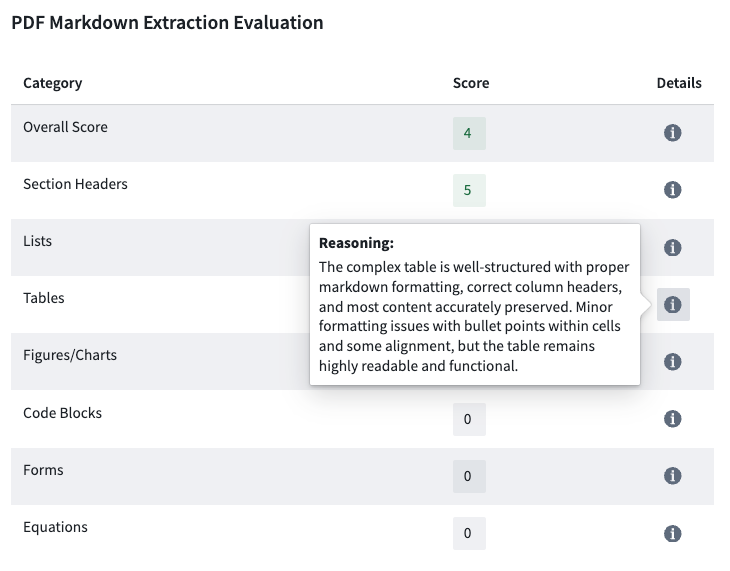 An example of an evaluation of document extraction results.
Step 6: Visualize Chunking (Optional)
In the Extraction result tab, select Chunk next to an extraction result to see how the text splits. You can adjust chunking parameters interactively and preview the changes in real-time.
Step 7: Deploy the Extraction Strategy
Open the Deployment tab, select your saved configuration, and click Create transform repository.
- Name your new Python transforms repository and choose its location.
- Enable optional chunking and embedding settings.
- Specify your output dataset and initiate the build. Refer to the repository's auto-generated
README.mdfor deeper instructions.
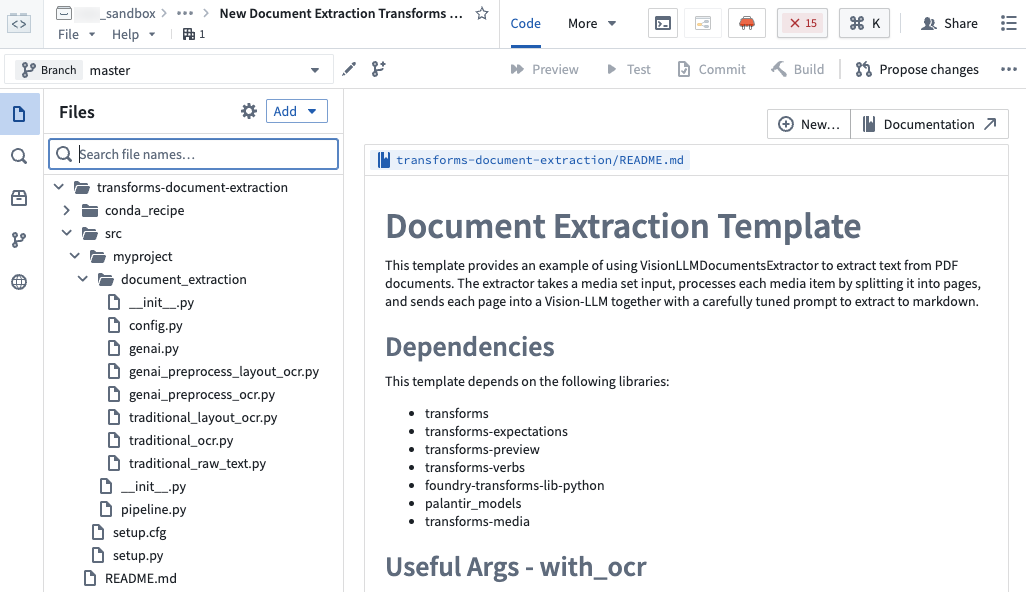 A Python transform repository, preconfigured with an AIP Document Intelligence template.
Key Takeaways
- Integrated Playground: AIP Document Intelligence bridges the gap between raw PDF documents and structured, pipeline-ready text data.
- Flexible Hybrid Methods: Supports traditional OCR, layout-aware OCR, pure VLM extractions, and hybrid preprocessed VLM workflows.
- Objective Evaluations: Provides built-in token cost tracking, execution times, and automated VLM grading for structural elements.
- Code-Free to Code-First: Users can prototype, prompt-engineer, and test entirely within a visual UI, then export the exact logic into a production-grade Python transforms repository with one click.
Learning map
AIP Document Intelligence Learning Map
Stage 1: Document Digestion Basics
- Traditional OCR vs Layout-Aware OCR: Learn the difference between basic plain-text reading and visual, structural OCR to preserve tables and document sections.
- Foundry Media Sets: Understand how to import, organize, and manage raw unstructured files (PDFs, images) within the Palantir ecosystem.
Stage 2: Vision Language Models (VLMs) & Prompting
- VLM-based Extraction: Master how multimodal models interpret visual layouts directly, bypassing strict structural rules.
- Prompt Engineering for Documents: Customize extraction prompts to accurately capture specific fields, entities, or nested tables.
- Document Preprocessing: Combine layout-aware OCR with VLM prompting to parse highly dense, multi-page, or complex structural elements.
Stage 3: Evaluation & Production Pipelines
- LLM-as-a-Judge Evaluation: Set up quality rubrics to programmatically score extraction accuracy (tables, code, lists) against actual documents.
- Text Chunking Visualizations: Adjust splitting and chunking strategies to optimize document text for downstream vector search/RAG architectures.
- Automated Transform Deployment: Deploy your validated configuration directly into a Python transform repository to automate batch pipelines over complete media sets.
Get hands-on — step by step
Step-by-Step Document Extraction Guide
-
Prepare Your Media Set Log in to Palantir Foundry, navigate to your project directory, and upload a sample multi-page document (such as a financial PDF or invoice) into a new Media Set.
-
Open Document Intelligence Launch the AIP Document Intelligence application from your Foundry workspace and select your newly uploaded Media Set from the interactive landing page.
-
Set Up the Extraction Strategy Navigate to the Configuration tab. Select Layout-aware OCR for structured preservation, or select a VLM strategy to leverage generative vision capabilities.
-
Run the Extraction Preview Click the Run button in the top right of the Configuration panel to execute your chosen strategy on the preview document page.
-
Inspect & Evaluate the Output Go to the Extraction result tab to view the generated Markdown. Select Evaluate results to let the LLM-as-a-judge score the quality of lists, tables, and speed metrics.
-
Tune Text Chunking Click the Chunk button next to your extraction results. Adjust chunk size and overlap configurations, visualizing exactly how the text will split for downstream AI models.
-
Deploy to a Batch Pipeline Switch to the Deployment tab, select your optimized configuration, and click Create transform repository. Name your new Python transforms repository to auto-generate a production-ready batch ingestion pipeline.
Top 3 sources
- 1Palantir Foundry Documentation - AIP Document Intelligence
The official product documentation detailing features, core concepts, extraction methods, and deployment strategies.
https://www.palantir.com/docs/foundry/document-intelligence/overview/
- 2Palantir Tech YouTube Channel
Palantir's official channel featuring live demonstrations and feature walkthroughs of the Foundry AIP platform.
https://www.youtube.com/@palantirtech
- 3Palantir Foundry Public Docs Repository
A public repository containing resource code samples and documentation frameworks for Foundry configurations.
https://github.com/palantir/foundry-public-docs
Links are AI-suggested — worth a quick sanity check before diving in.