AI FDE Navigation
7/21/2026, 5:14:46 PM · Source
This article walks users through starting a session, managing context, using the chat outline, and configuring tools within Palantir's AI Function Development Environment (AI FDE).
AI FDE provides a conversational interface for interacting with Foundry data, functions, and other resources. Use the input field at the bottom of the page to start a session, add context, and configure tools that the AI can invoke.
Initiate a session
Navigate to the AI FDE application and begin by typing a question or request in the input field at the bottom of the page.
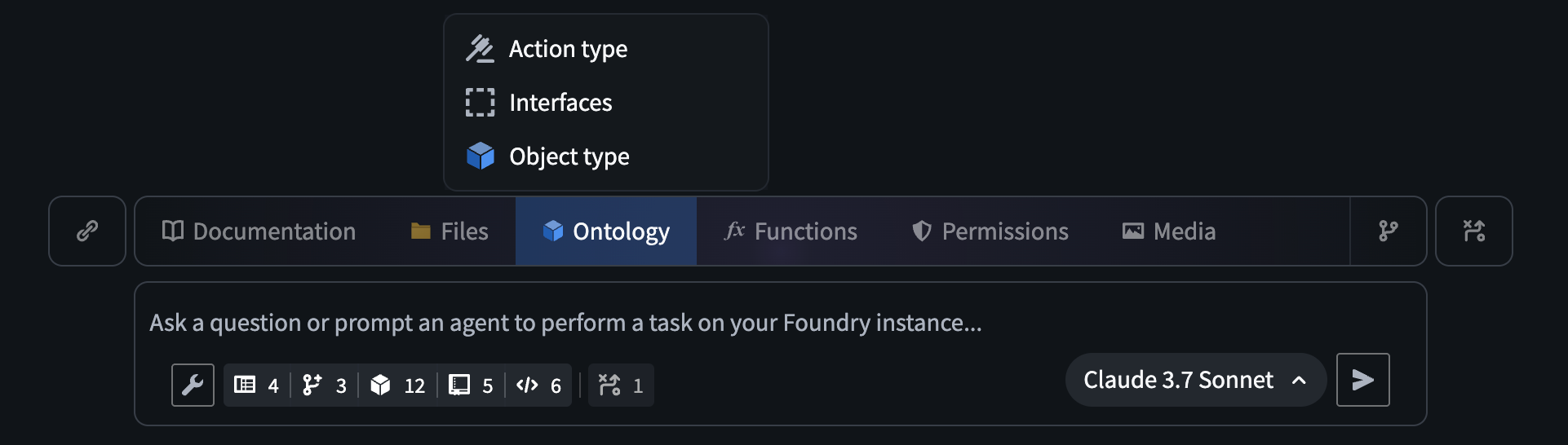 The AI FDE input field.
Sessions are managed from the top toolbar, where you can create a new session or switch between existing ones.
 The AI FDE Session management menu.
Manage context
AI FDE can only work with context that you explicitly add to the chat. Context can be supplied in several ways:
-
Describe the task – the agent will automatically select a mode that determines the appropriate context and tools for your prompt.
-
Select a mode manually – choose a mode from the Modes menu above the input field. Some modes expose extra configuration options (e.g., function language, use of transforms vs. Pipeline Builder).
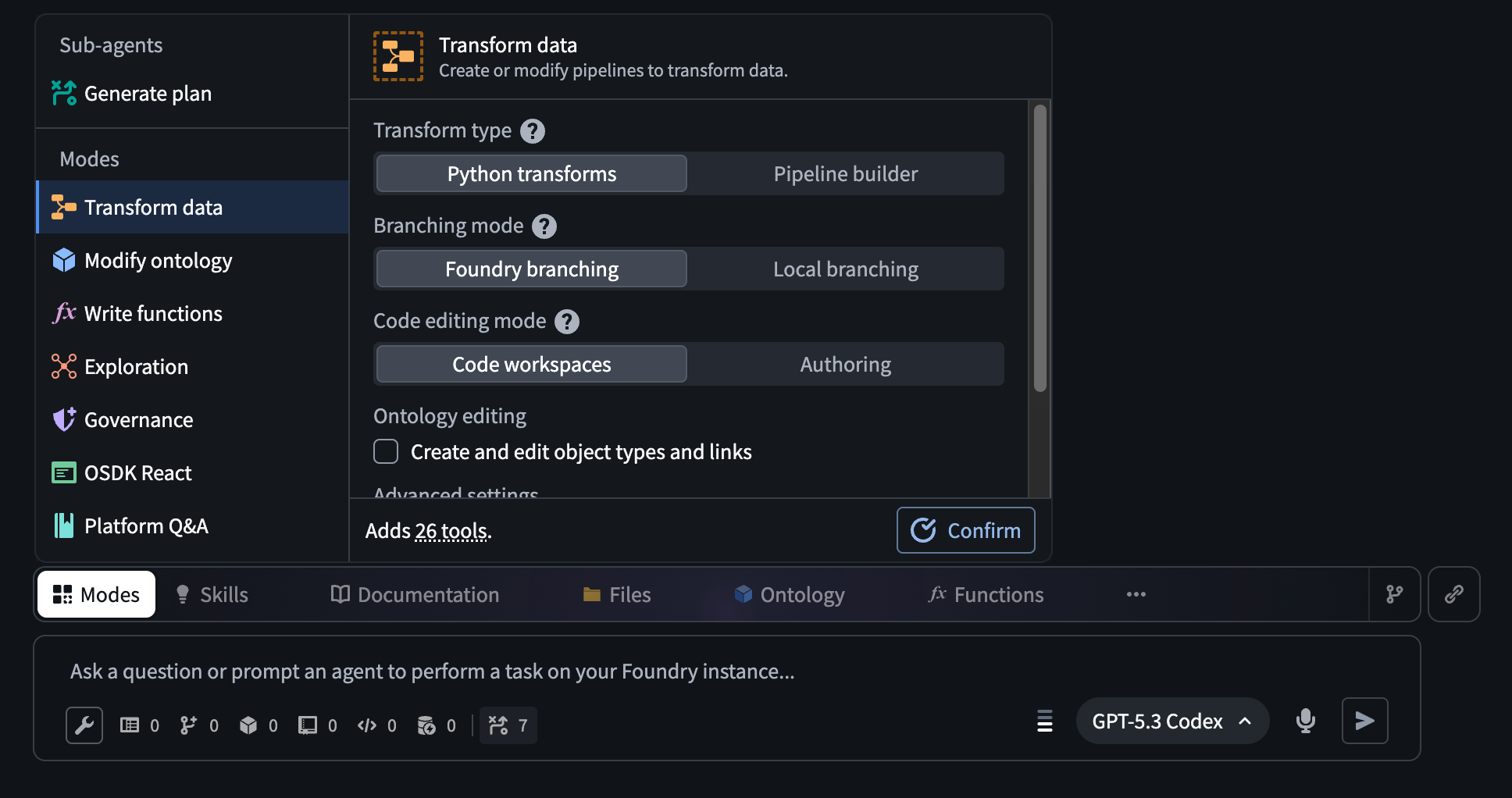 the AI FDE Mode selector above the input field.
 -
Add context manually – use the ribbon above the prompt input field to attach documentation bundles, upload media, or select Foundry resources such as:
- Datasets
- Functions
- Branches
- Interfaces
- Action types
- Object types
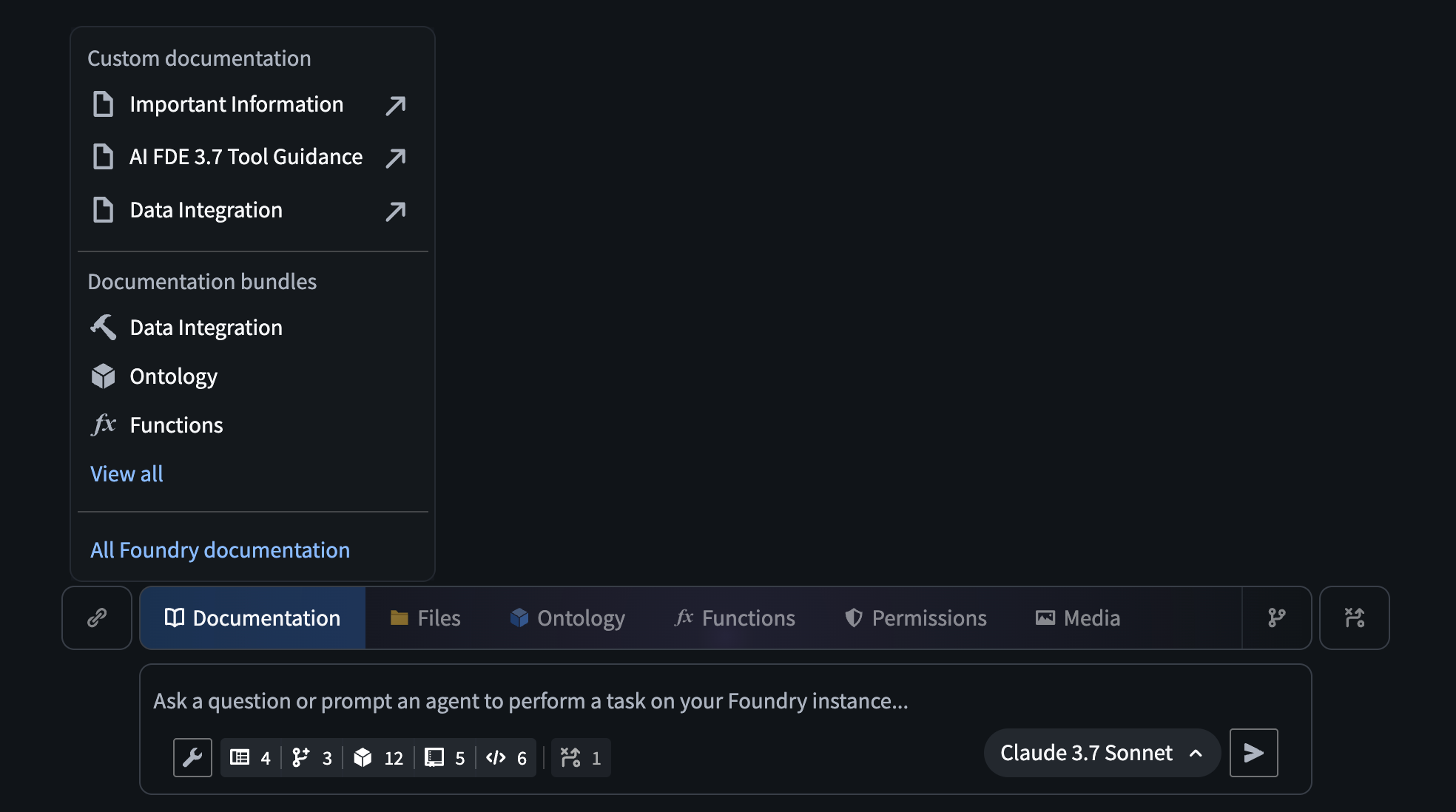 The ribbon above the AI FDE input field with the option to add documentation bundles highlighted.
 -
Drag‑and‑drop links from other Foundry applications directly into AI FDE.
-
Enable search tools that let AI FDE locate relevant resources automatically.
Chat outline
A collapsible panel on the right side shows the chat outline, which records the history of prompts, responses, and tools used in the session. You can:
- Summarize or delete messages (either from the main chat or the outline) to keep the model within its context window during long sessions.
- View the token count for each message.
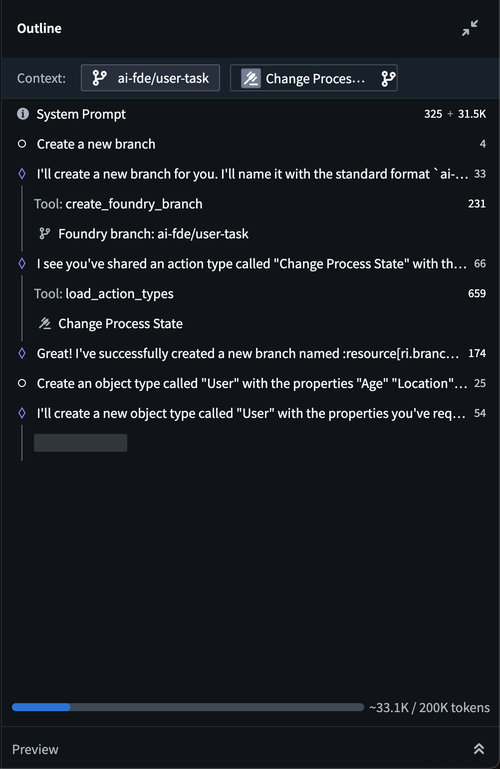 The outline panel in an AI FDE session.
Tool configuration
AI FDE lets you enable only the tools required for a given task, improving model performance. Use the tools menu below the input field to select or deselect tools.
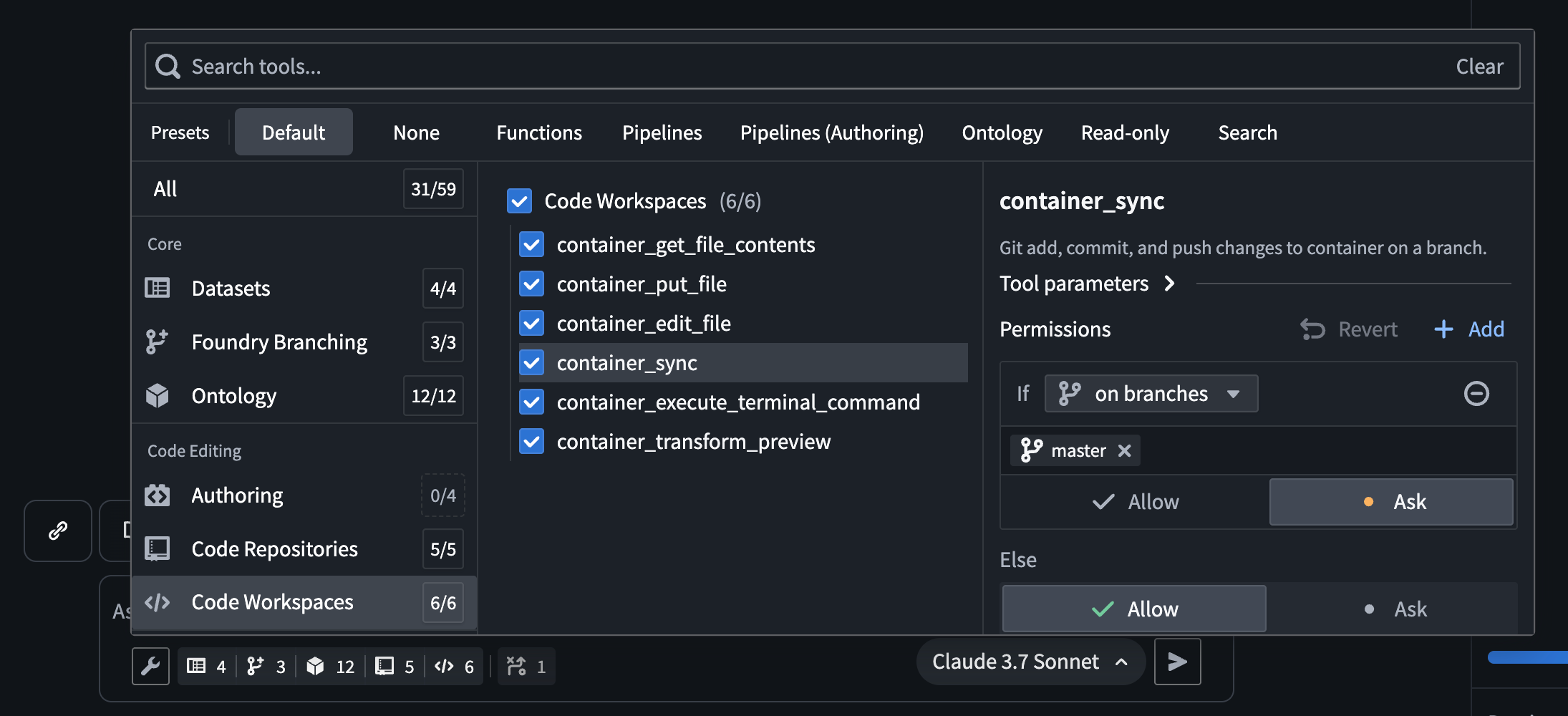 The tools menu below the prompt input field.
When a task invokes a tool, AI FDE may request your approval. By default, approval is required in the following situations:
- The tool modifies the default branch.
- The tool creates an unbranched change (e.g., a new code repository).
- The tool could have side effects, such as triggering dataset builds.
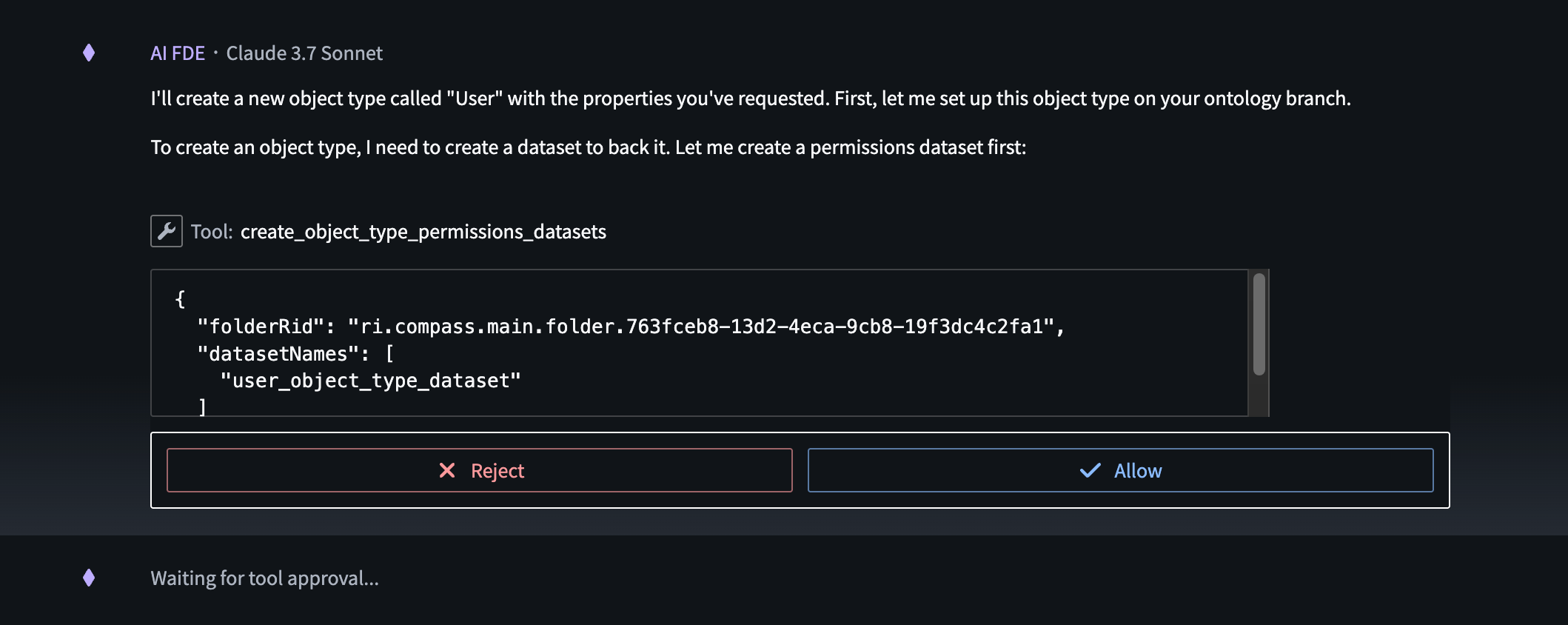 The option to reject or allow tool usage in an AI FDE session.
Tool‑approval settings can be customized in the tool selection panel; for instance, you can allow certain tools to run automatically on allow‑listed branches or projects.
Key takeaways
- Start a session by typing into the bottom input field; manage sessions from the top toolbar.
- Add context via task description, mode selection, manual resource attachment, drag‑and‑drop, or search tools.
- Use the chat outline to track conversation history and control token usage.
- Enable only needed tools and approve actions when they could affect production branches or have side effects.
- Customize tool approval to streamline workflows on trusted branches or projects.
Learning map
Stage 1: Getting Started
- Open AI FDE and initiate a new session – essential for any interaction.
- Locate the input field and basic toolbar – the primary entry points for queries.
Stage 2: Managing Context
- Add documentation bundles, datasets, or functions via the ribbon – gives the model the data it needs.
- Use the Modes menu to select a preset mode – tailors tool access and language settings.
- Drag‑and‑drop resources from other Foundry apps – quick way to enrich context.
Stage 3: Controlling the Chat Flow
- Explore the collapsible chat outline – monitor prompt history, token usage, and tool calls.
- Summarize or prune messages – prevents exceeding the model’s context window.
Stage 4: Tool Configuration & Approval
- Enable only the tools required for a task via the tools menu – improves model performance.
- Understand default approval rules and customize automatic approvals – ensures safe execution of changes.
Get hands-on — step by step
- Log into Palantir Foundry and navigate to the AI FDE application from the workspace menu.
- Start a new session by clicking the New Session button in the top toolbar and type a simple question like “What datasets are available?” in the input field.
- Add context: click the ribbon above the input field, choose Add Documentation Bundle or Add Dataset, and select a relevant dataset from the list.
- Select a mode: open the Modes selector above the input field and pick Data Exploration (or any mode that matches your task).
- Enable a tool: click the Tools menu below the input field, toggle on Search and Dataset Query.
- Run the query by pressing Enter; if a tool usage approval dialog appears, click Allow.
- Inspect the chat outline on the right panel: note the token count and use the Summarize button to condense earlier messages.
- Close the session via the top toolbar when finished, ensuring all changes are saved or discarded as needed.
Top 3 sources
- 1Palantir Foundry AI FDE Navigation Documentation
Official guide covering session initiation, context management, chat outline, and tool configuration for AI FDE.
https://www.palantir.com/docs/foundry/ai-fde/navigation/
- 2Palantir Foundry Learning Center – AI FDE Overview
Self‑paced learning module that introduces AI FDE concepts, navigation, and practical use‑cases.
https://www.palantir.com/learn/foundry/ai-fde/
- 3Palantir YouTube: Getting Started with AI FDE
Video walkthrough demonstrating how to launch a session, add context, and configure tools in AI FDE.
https://www.youtube.com/watch?v=JkYV6hF9c2E
Links are AI-suggested — worth a quick sanity check before diving in.